How to Turn a Single Product Image into a Video for Social Media Using AI in Minutes?
Learn how to turn a single product image into a social media video with Pollo AI. Explore its AI models, image-to-video workflow, and tips for creating better product clips.
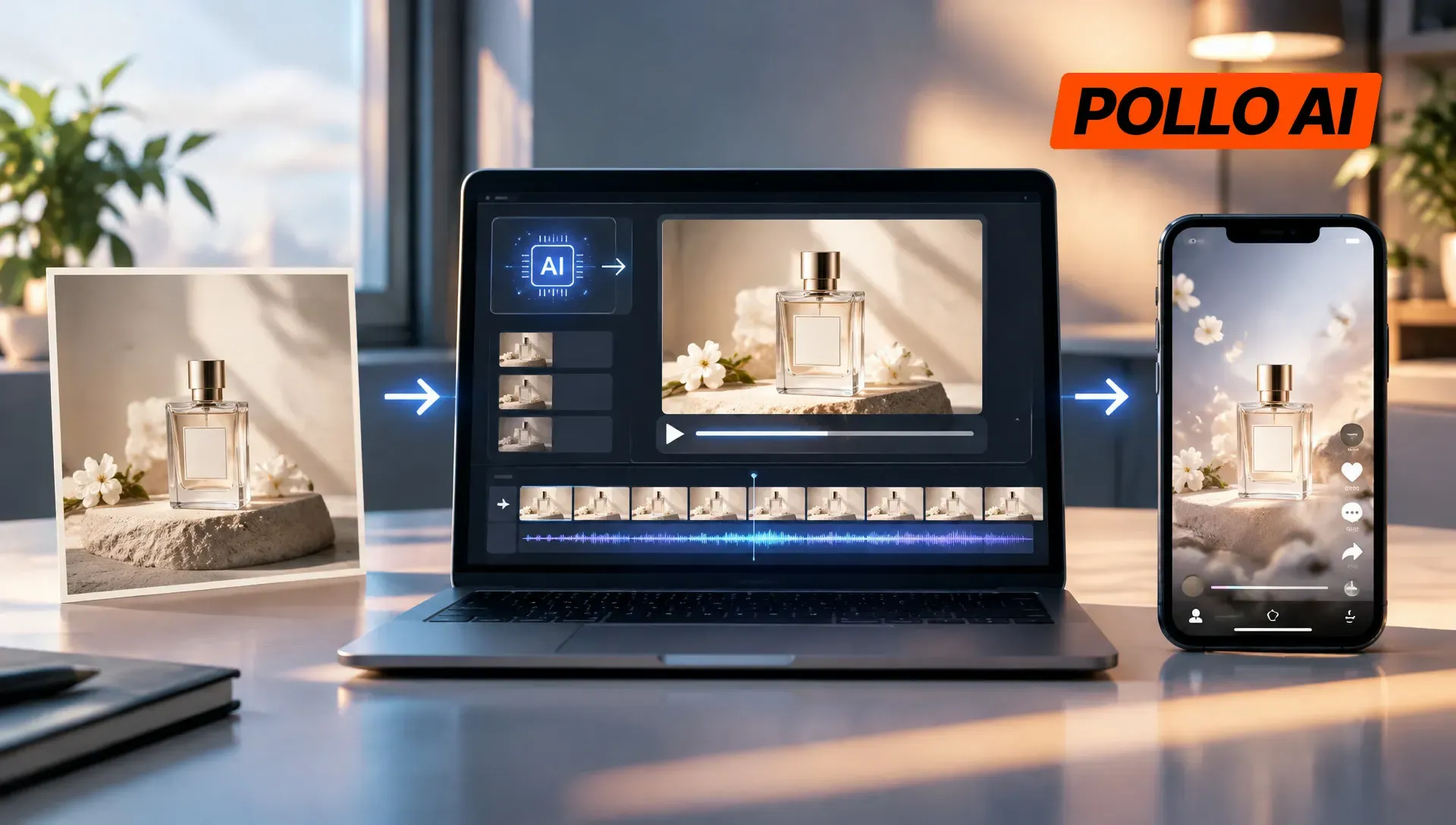
A product photo works well for an online listing, but a short video can show more movement and detail in a social media feed. An AI video generator from image can help small businesses turn existing product photos into short clips without arranging a new shoot. Pollo AI offers this capability through its Image to Video tool. This guide explains how to use it to create product videos for TikTok, Instagram Reels, and other social platforms.
What Is the Pollo AI Image to Video Generator, and Why Choose It?
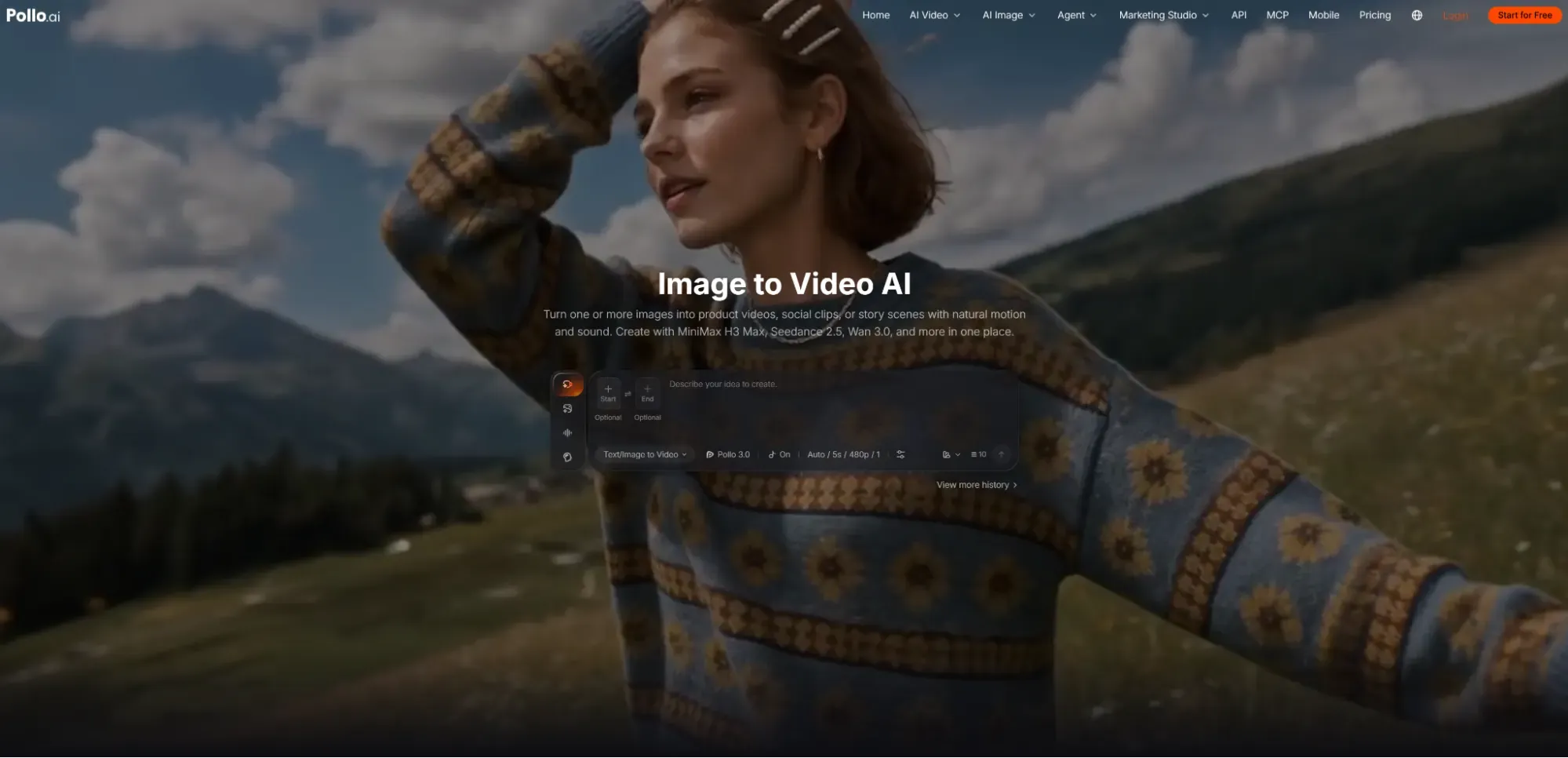
The Image to Video generator on Pollo AI is an AI-powered tool that lets users animate a photo and turn it into a short video clip. Users can describe the desired movement and camera direction in a text prompt, then select an AI model to generate the video.
A key feature is its library of more than 50 video models, including Kling 4.0, Seedance 2.5, MiniMax H3 Max, Wan 3.0, and Veo 3.1. Instead of relying on one generation model, creators can test different options to find a style that works for their product.
The tool also supports HD and native 4K output, along with audio generation for sound effects, voiceovers, and subtitles. Users can adjust the aspect ratio, framing, pacing, and visual emphasis to prepare clips for different placements.
For sellers, this can save the effort of filming every product from scratch. A skincare brand could use an AI video generator from image to animate a serum bottle with a slow camera zoom and soft lighting, while a jewelry store could add subtle reflections to highlight a necklace's finish. The same source photo can provide different creative variations for social posts, ads, and product pages.
How to Turn a Single Product Image into a Video with Pollo AI
Step 1: Choose a Product Photo
Start with a clear product image. Pollo AI supports JPG and PNG files with a minimum resolution of 300 × 300 pixels.
A catalog photo with a visible product and relatively simple background is a good starting point. For example, a skincare seller could use a front-facing serum bottle photo rather than an image with several products competing for attention.
Step 2: Upload the Image and Select a Model
Open the Image to Video generator and upload the photo. Browse the available models, including Kling, Seedance, MiniMax, Wan, and Veo.
Each model may interpret movement, lighting, and visual details differently. Creators can try a few options with the same image to see which produces the most suitable product showcase.
Step 3: Write a Motion Prompt
Describe what should happen in the video, including the camera movement, lighting, and atmosphere.
For the skincare example, a prompt could be:
"Create a clean, premium product showcase. The camera slowly pushes toward the serum bottle as soft studio lighting moves across the glass. Add subtle reflections and gentle background movement. Keep the bottle's original shape, label, and colors unchanged."
This gives the model a clear shot to work with without asking it to animate too many things at once.
Step 4: Generate and Check the Result
Start generating the clip and review the output. Pay particular attention to the product's shape, packaging, label, and colors. These details matter in commercial content, and AI-generated footage can sometimes alter them.
If the result looks too busy or the product changes noticeably, simplify the prompt or try another model. A second generation with less movement may produce a more usable clip.
Step 5: Prepare the Video for Social Media
Once the clip looks right, adjust its aspect ratio and framing for the intended platform. Vertical videos generally suit TikTok and Instagram Reels, while square and widescreen formats may work better elsewhere.
For further editing, the AI Video Editor can help refine pacing, add scene changes, and polish the final footage. The finished clip can then be downloaded for publication.
Tips for Creating Better Product Videos from One Image
1. Give the product enough visual space.
Avoid heavily cropped photos or backgrounds filled with distracting objects. The model needs a clear view of the subject to create convincing movement.
2. Keep prompts focused on one main action.
A slow zoom, gentle rotation, or moving light is usually enough for a short product showcase. Too many instructions can make the final shot look cluttered.
3. Protect important brand details.
Ask the model to preserve logos, packaging, colors, and proportions. Always compare the generated clip with the original photo before using it in an ad or product listing.
4. Test different models before settling on a style.
The same prompt may produce different results across models. A couple of quick comparisons can help identify which one handles the product and camera movement best.
5. Think about mobile viewing.
Keep the product visible throughout the clip and avoid placing important details near the edges. This helps prevent cropping from hiding labels or key product features on smaller screens.
Conclusion
A new product video doesn't always require a new photoshoot. With Pollo AI, sellers can use an existing product image, describe the movement they want, and generate a short clip with a choice of AI models.
The results still need checking, particularly when accurate packaging and branding matter. But for small businesses that already have product photography and need more content for social media, image-to-video generation offers a straightforward way to get more out of those existing assets.
FAQs
1. Can Pollo AI turn a single image into a video?
Yes. The Image to Video generator accepts one or more images. Users can upload a single product photo, describe the desired movement, and generate a video from it.
2. Which AI video models can users choose from?
Pollo AI provides access to more than 50 video models, including Kling 4.0, Seedance 2.5, MiniMax H3 Max, Wan 3.0, and Veo 3.1. Different models offer different approaches to video generation.
3. Can Pollo AI generate audio for product videos?
Yes. The image-to-video workflow supports audio generation, including sound effects, voiceovers, and subtitles. This is useful when a product clip needs more than visuals alone.
4. Is the Pollo AI Image to Video generator free?
Pollo AI offers a credit-based free trial, so users can try its image-to-video features without an upfront payment. The number of available generations depends on the credits and plan associated with the account.