 Object Remover
Upload Your Photo
Choose a JPG, PNG, or WebP image from your device and open it in the free object remover workspace.
Free AI Object Remover for Fast Photo Cleanup
Upload a photo and brush over an unwanted object, or describe what you want to remove. Our AI object remover erases people, text, logos, clutter, wires, and other distractions, then rebuilds the area for a natural-looking result. No sign-up and no usage limits.
Supports JPG, PNG, and WebP images.
Remove unwanted objects online without layers, complicated tools, or editing experience. Mark the object, let AI clean up the area, and download your finished photo.
Choose a JPG, PNG, or WebP image from your device and open it in the free object remover workspace.
Paint over the person, text, logo, shadow, cable, product prop, or background distraction you want to remove from the photo.
AI inpainting analyzes the surrounding image, fills the selected area, and creates a clean result you can download.
Core strengths
Remove unwanted objects from photos, preserve the surrounding scene, and download a clean image without complicated editing tools.
You decide exactly what disappears. Brush over the full unwanted object and fine-tune the mask before generating the result.
The AI cleanup model fills the selected area based on nearby texture, color, lighting, shadows, and scene structure.
Remove as many unwanted objects as you need without credits, subscriptions, hidden trial limits, or watermarked exports.
Start editing immediately in the browser. You do not need to create an account or share personal details.
Uploaded images and generated results are automatically removed within 2 hours, so files do not stay on our servers.
Use it on travel shots, portraits, products, listings, food photos, screenshots, and social media images.
A photo object remover is useful whenever you want to keep the image but erase one distracting detail.
Quick answers about free brush-based object removal, privacy, limits, and image quality.
Yes. Object Remover is completely free, requires no registration or login, and has no usage limits.
No. You only need to upload a photo, brush over the object you want to remove, and generate the cleanup result.
Yes. You can remove people, text, logos, captions, signs, cables, clutter, and other unwanted details from a photo.
No. You can remove unwanted objects as often as needed without buying credits, subscribing, or creating an account.
The cleanup workflow is intended for common web image formats such as JPG, PNG, and WebP.
Yes. Uploaded images and generated results are automatically removed within 2 hours. The product does not require an account, so you can edit without linking files to a user profile.
Brush over the entire object and include a small edge around it. If the object touches complex details, try a slightly tighter mask or run another pass on the remaining area.
AI inpainting uses nearby pixels to rebuild the masked area. Results are strongest on backgrounds with repeatable texture, open space, walls, sky, grass, fabric, or simple surfaces.
Yes. You can use it to clean product photos, marketing images, listing photos, and other commercial visuals, as long as you have the rights to edit and use the original image.
No. A background remover separates the main subject from the entire background. This object remover keeps the photo and only erases the brushed area.
Remove unwanted objects with a brush or text prompt using our free AI object remover. No sign-up, no usage limits, and automatic file deletion within 2 hours.
See how Object Remover handles common edits: people removal, text removal, product cleanup, wire removal, and background distraction cleanup.
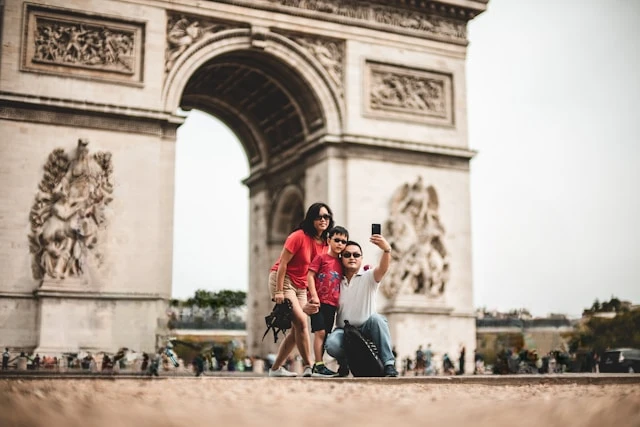
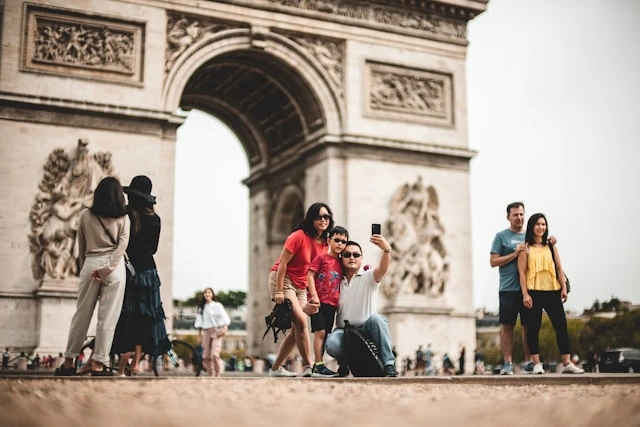 BeforeAfter
Erase people in the background while preserving landmarks, beaches, streets, and scenery.

 BeforeAfter
Clean city shots by brushing over distracting signs, bins, poles, or small background objects.
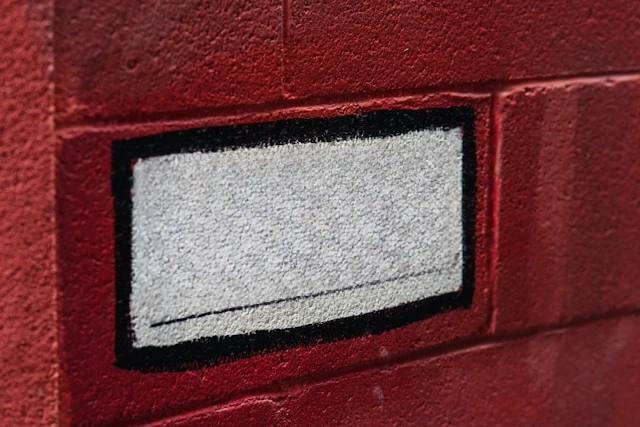
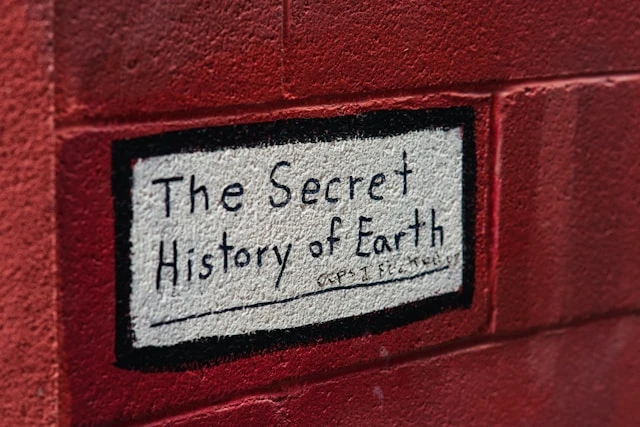 BeforeAfter
Brush over text overlays, timestamps, captions, or labels and restore the image underneath.
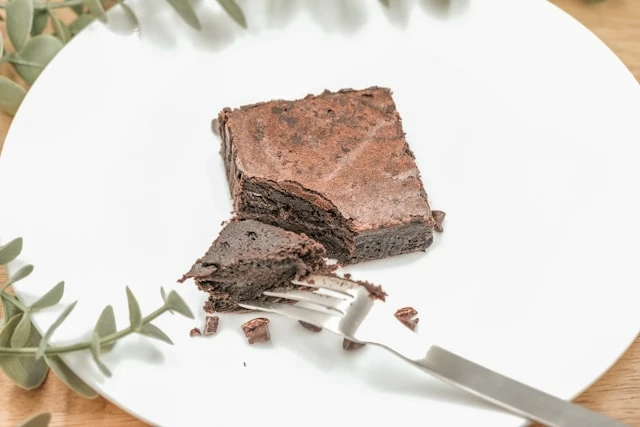
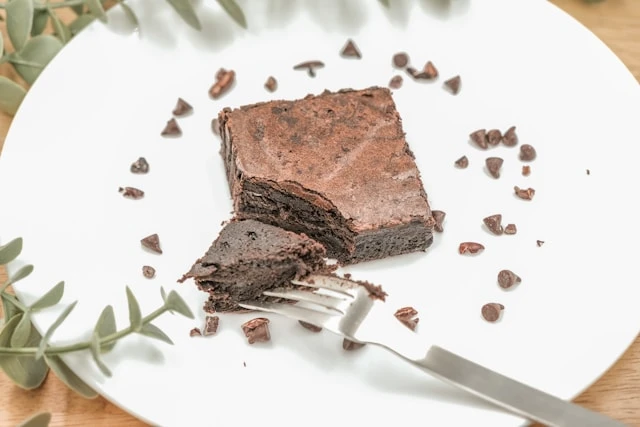 BeforeAfter
Remove props, dust, reflections, and table clutter so product listings look more focused.

 BeforeAfter
Remove photobombers, wall marks, signs, or objects behind a subject without complex retouching.
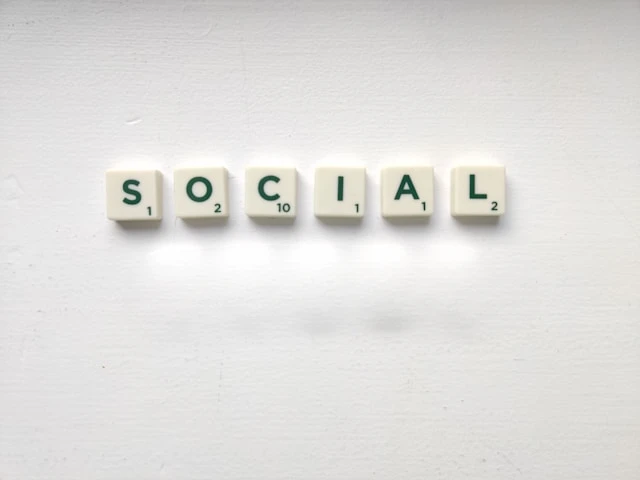
 BeforeAfter
Quickly erase accidental objects before publishing posts, stories, thumbnails, or profile images.
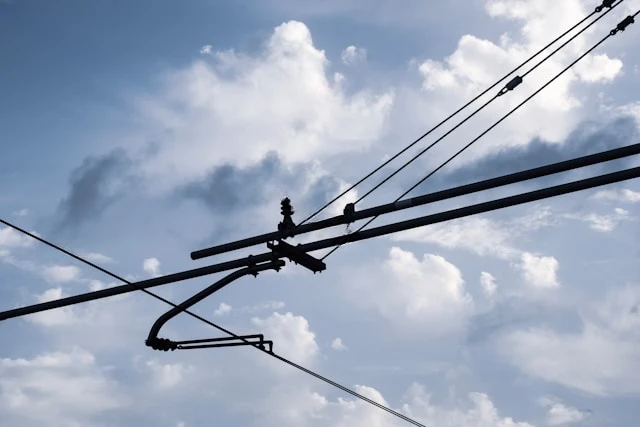
 BeforeAfter
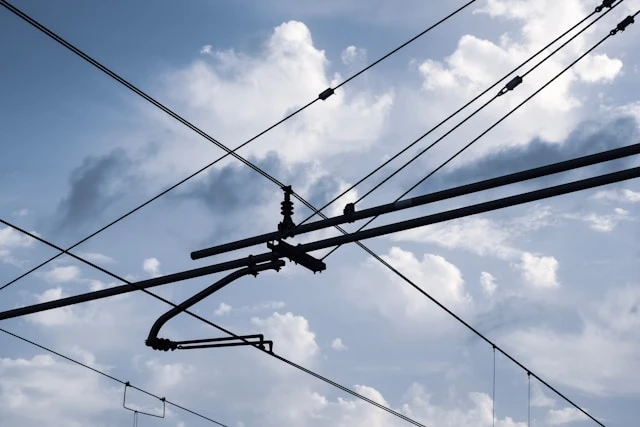
Brush out wires, cables, cords, and small lines that make interiors or architecture feel messy.
 BeforeAfter
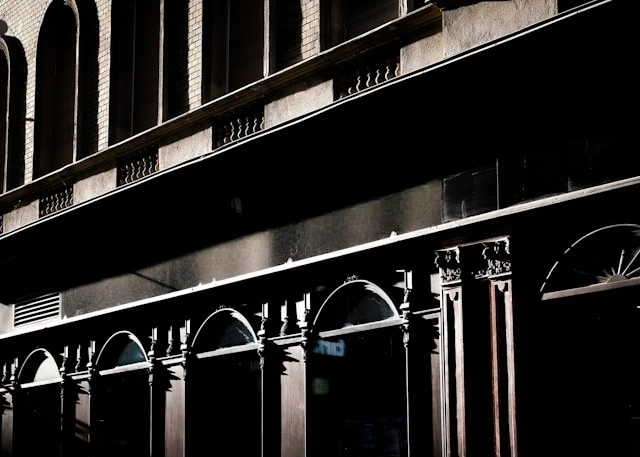
Remove small messes, wall marks, cords, bins, and visual distractions from room photos.

 BeforeAfter
Erase crumbs, stains, utensils, and table clutter while keeping the dish as the focus.