
Get the Object Remover app

Download Object Remover for iOS

Keep the photo. Lose the distractions.

Remove unwanted objects from photos on your iPhone, from a passerby on the beach to a parked car or writing on a wall. Brush over the distraction and let the AI photo eraser fill the selected area, keeping the composition you wanted to capture.

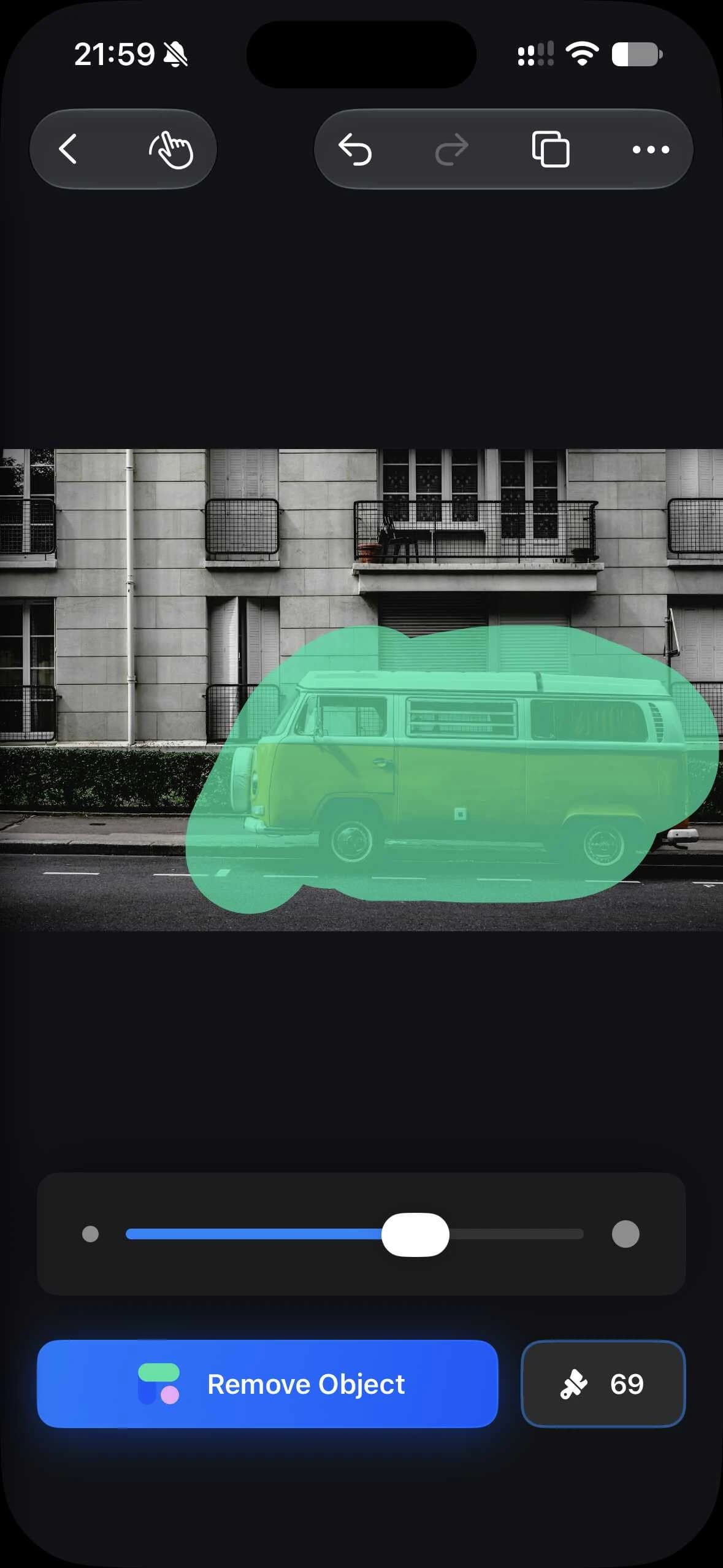
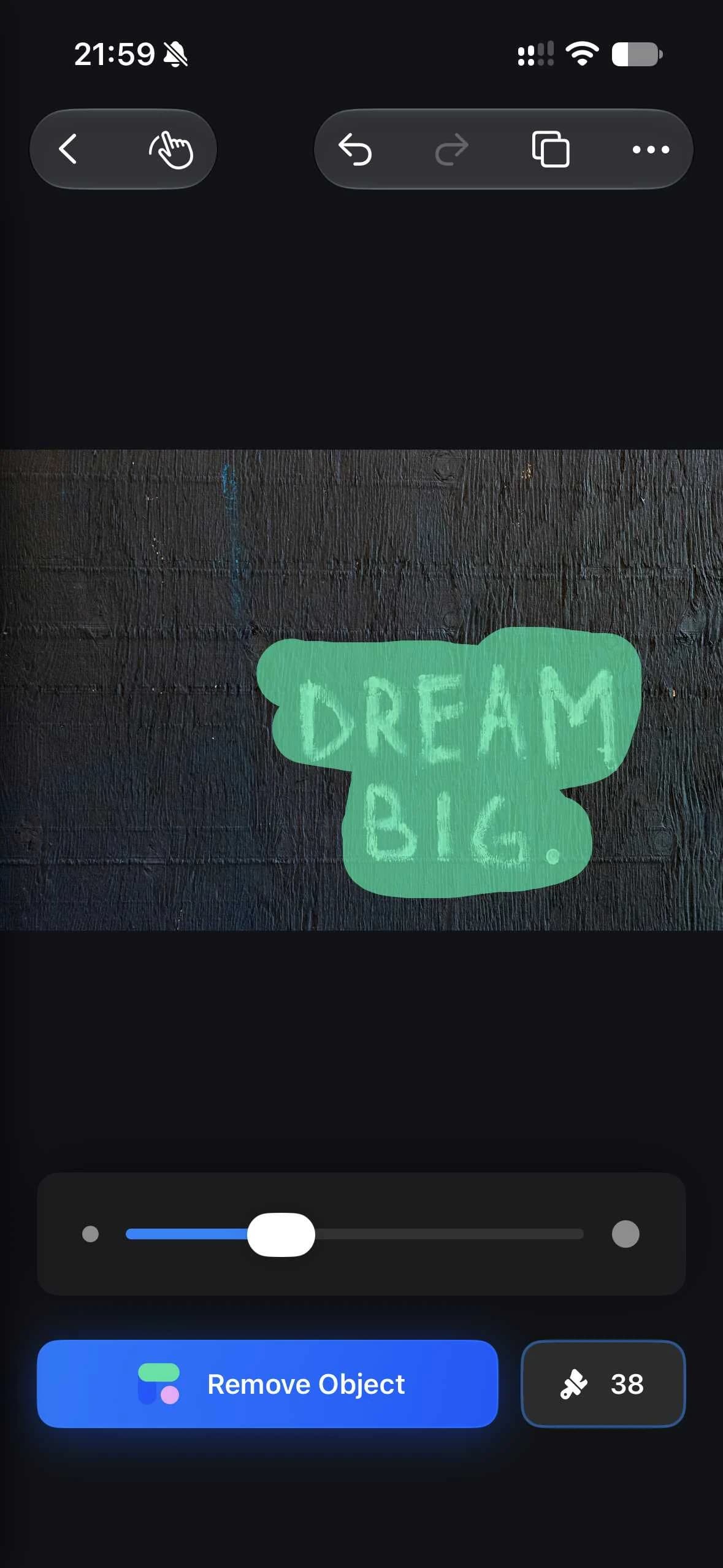
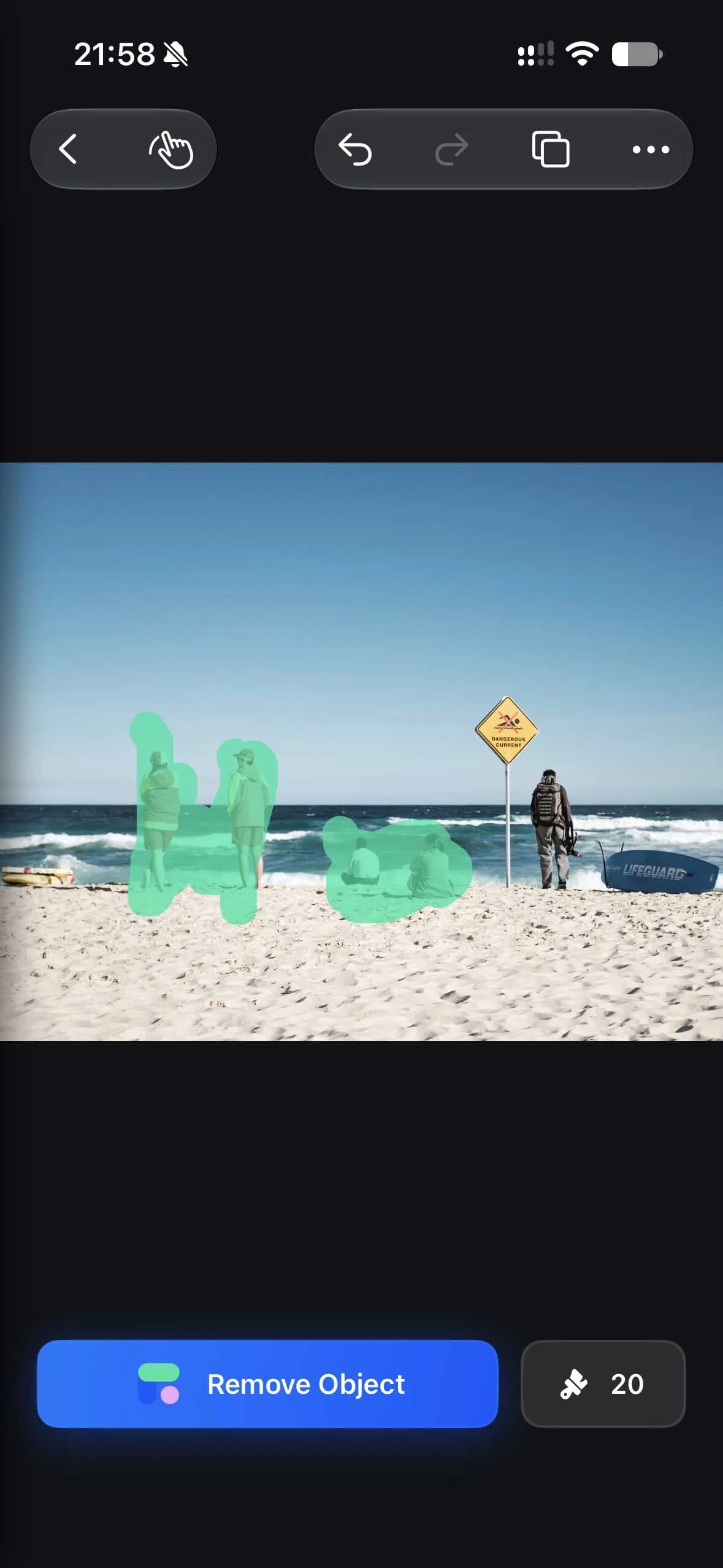
iPhone editor with an orange van selected for removaliPhone editor with lettering on a wall selectediPhone editor showing a green selection over people on a beach

Make room for what matters.

See how Object Remover helps you remove people, vehicles and text from photos. Explore three photo cleanup examples, then drag across each image to compare the original scene with the edited result.

Remove unwanted people. Keep the beach.

Remove unwanted people from beach photos, travel pictures and everyday snapshots on your iPhone. Brush over passersby or background visitors while leaving your main subject unselected. The AI object remover fills the marked area using the surrounding scene, helping you keep the shoreline and the framing you chose. Review the sand, water and nearby edges, then refine any remaining distractions before saving your photo.
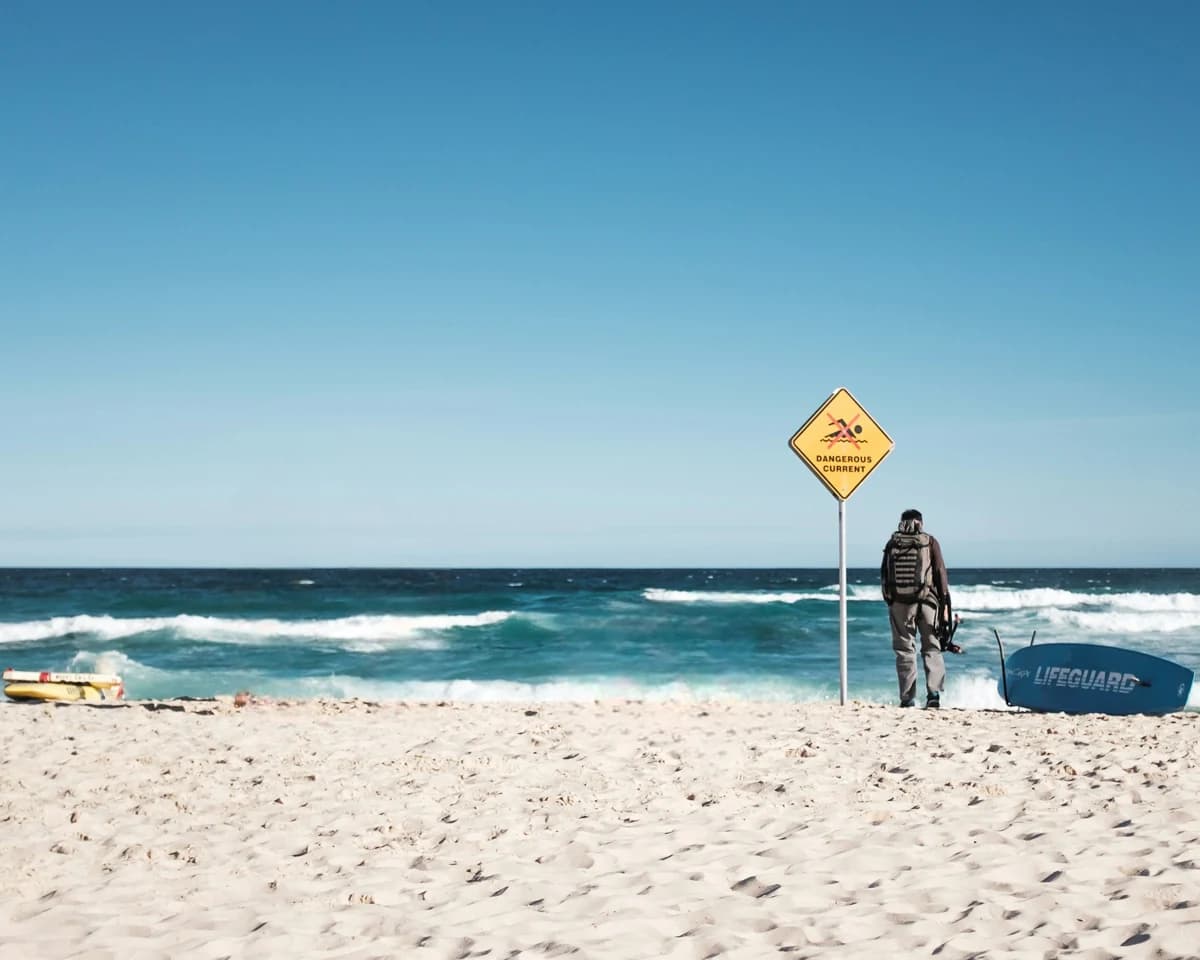

Beach scene with selected visitors removed — AfterBeach scene with selected visitors removed — Before

Remove the parked car. Open up the street scene.

A parked car can draw attention away from the architecture or view you wanted to photograph. Use the iPhone photo eraser to remove cars and other unwanted objects without cropping the image. Paint over the vehicle, including its edges, and let Object Remover fill the selection from the surrounding scene. Check pavement patterns and building lines after processing, and make a smaller follow-up selection where details need extra cleanup.

Street scene before and after removal of an orange van — AfterStreet scene before and after removal of an orange van — Before

Remove text from photos. Keep the texture.

Erase unwanted text, lettering and writing that distract from your photo. In this example, Object Remover clears the words from a dark wall so the surface becomes the focus again. Brush over the letters on your iPhone, process the selection and compare the result with the original image. For textured backgrounds, work in smaller areas and refine any traces around the letter edges before saving the edited photo.

Dark textured wall before and after removing DREAM BIG lettering — AfterDark textured wall before and after removing DREAM BIG lettering — Before

From your camera roll to a cleaner photo.

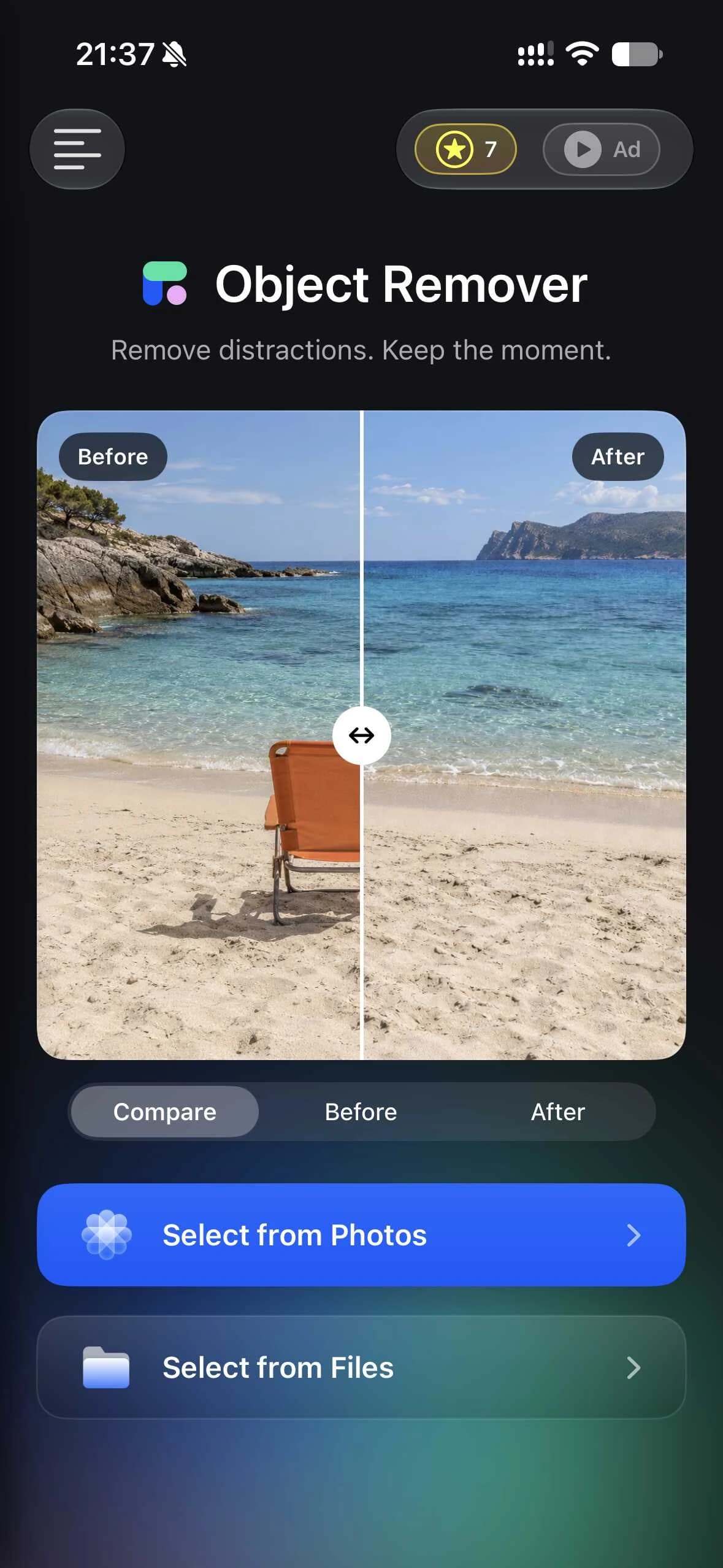
Choose an image, select the distraction and review the result. Object Remover brings AI photo cleanup to your iPhone with a brush-based workflow and local photo processing that works offline.

Object Remover iPhone home screen with photo and file import options
  1. 1

    Choose a photo

    Open a photo from Photos or Files, whether it is a travel memory, a street scene or an everyday snapshot.

  2. 2

    Mark what should go

    Adjust the brush to select unwanted people, objects or text. Cover the edges carefully while leaving the details you want to keep unselected.

  3. 3

    Review and save

    Compare your edited photo with the original, check the filled background and refine any remaining marks before saving.

On your iPhone, or in your browser.

Use the iPhone app for local, offline photo editing, or open the online object remover for a quick cleanup in your browser. Both help remove unwanted objects from photos; choose the selection tools and workflow that suit your image.

On your iPhone, or in your browser.
WorkflowiPhone appWeb editor
Getting startedInstall from the App StoreOpen the website
Selecting an objectBrush selection; people and text detectionBrush selection or a text prompt
Photo processingLocally on your device; works offlineUpload and process online
Access10 free saves, with Pro upgradesFree to use without signing up

Before you download

A few practical details about Object Remover for iPhone.

Which iPhones are supported?

The current app requires iOS 16.0 or later. Check the App Store listing for compatibility with your device.

Does object removal work offline?

Yes. The iPhone app processes photos locally on your device. Purchases, purchase restoration and optional online services need an internet connection.

Is the iPhone app free?

You can start with 10 free saves. Each successfully saved image uses one credit. Pro options include subscriptions and a lifetime purchase; check the app for current prices and terms.

Can I remove people, objects and text?

Yes. Brush over an object, or use the app’s people and text detection to find areas to select. Review the filled area before saving, especially on detailed backgrounds.

Will every edit look perfect?

Results depend on the image and selection. Simple backgrounds are usually easier to fill. Try smaller selections or refine remaining marks when working near complex edges.

Is this the same as the web editor?

Both help remove unwanted objects, but their workflows differ. The iPhone app offers local processing and its own purchase options. The web editor runs through your browser and includes brush and prompt modes.

Give your next photo a little breathing room.

Start with a photo you like. Remove the detail you don’t.