
Get the Object Remover app

Download Object Remover for iOS

Clean up your photos. Right on Android.

Remove unwanted objects from photos on your Android phone with a brush-based AI photo eraser. Select background visitors, a parked vehicle or distracting writing, then review how the selected area blends into the surrounding scene.

Try the web editor
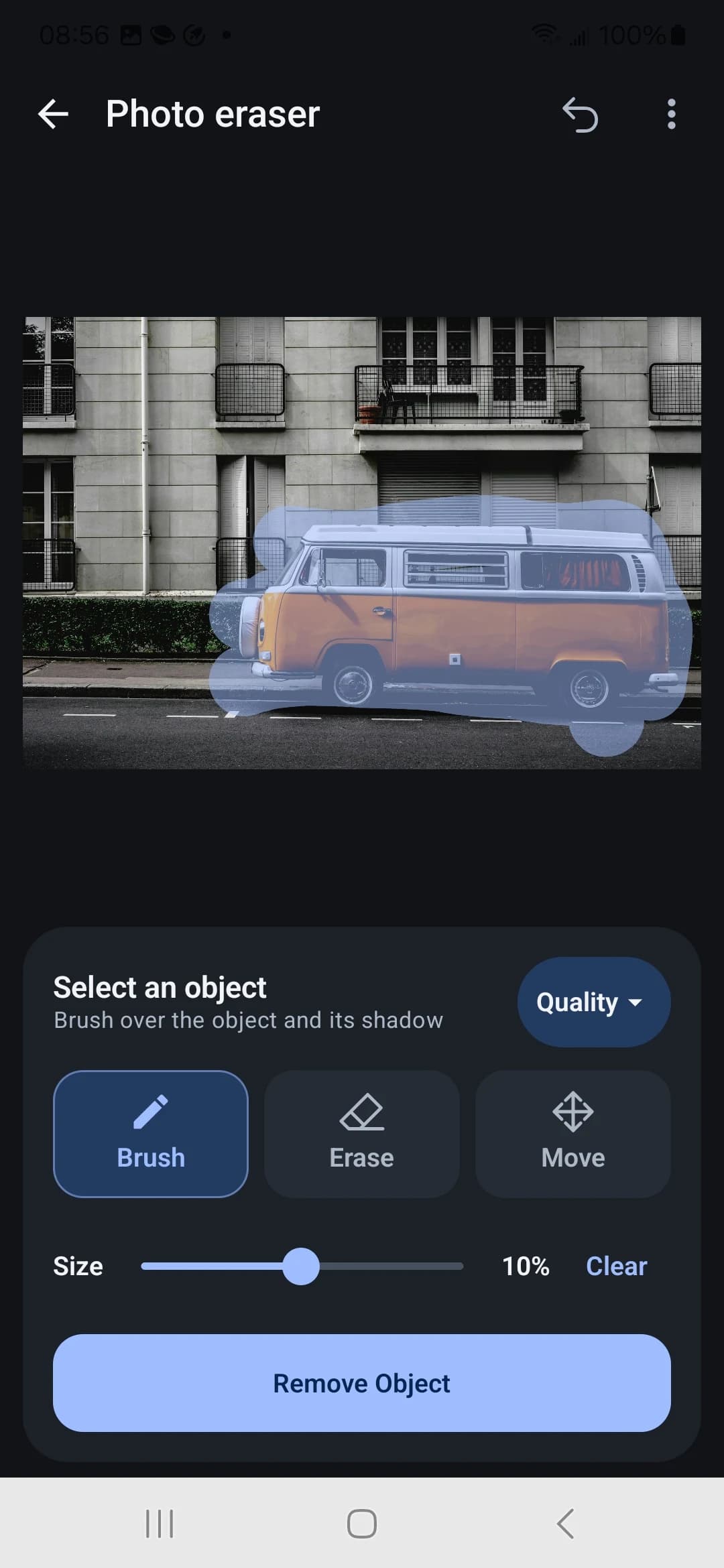
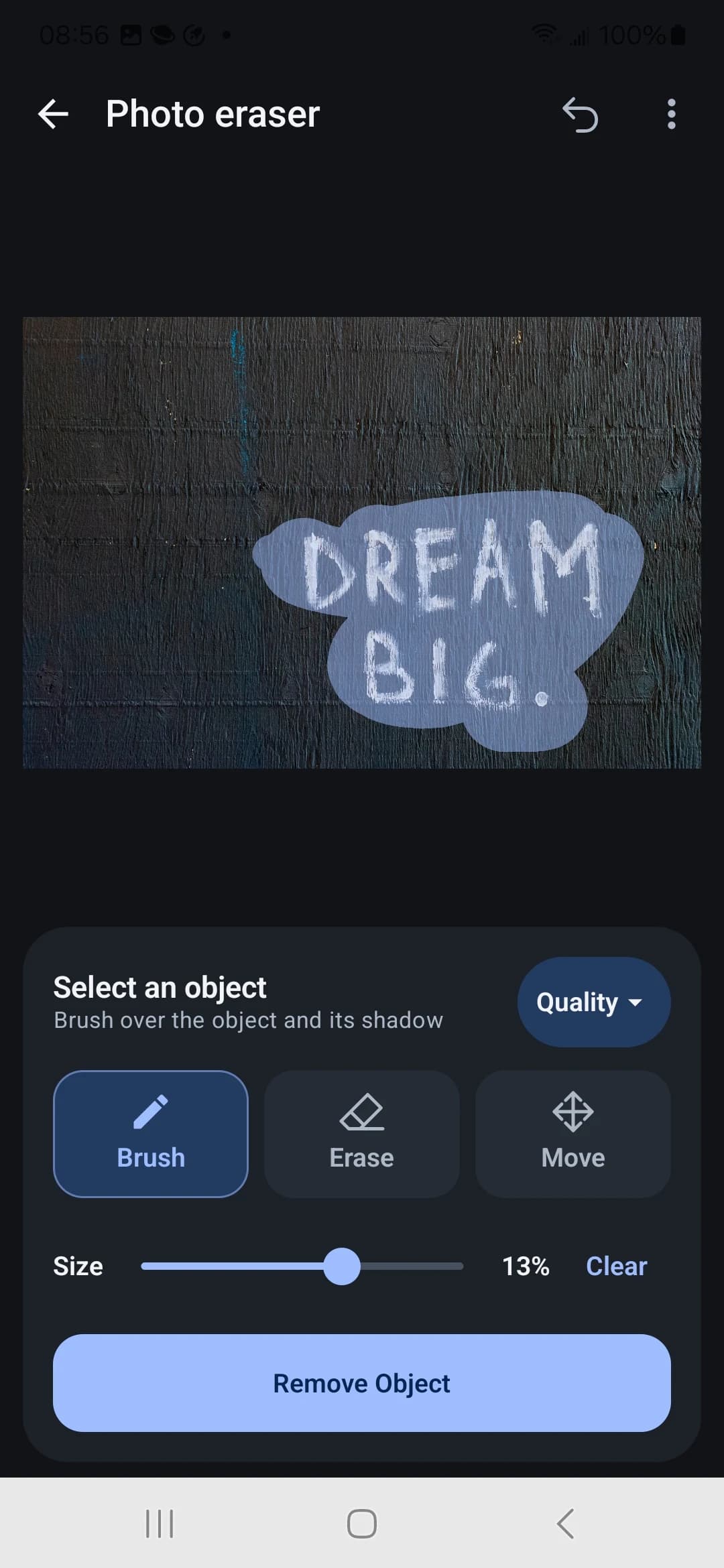
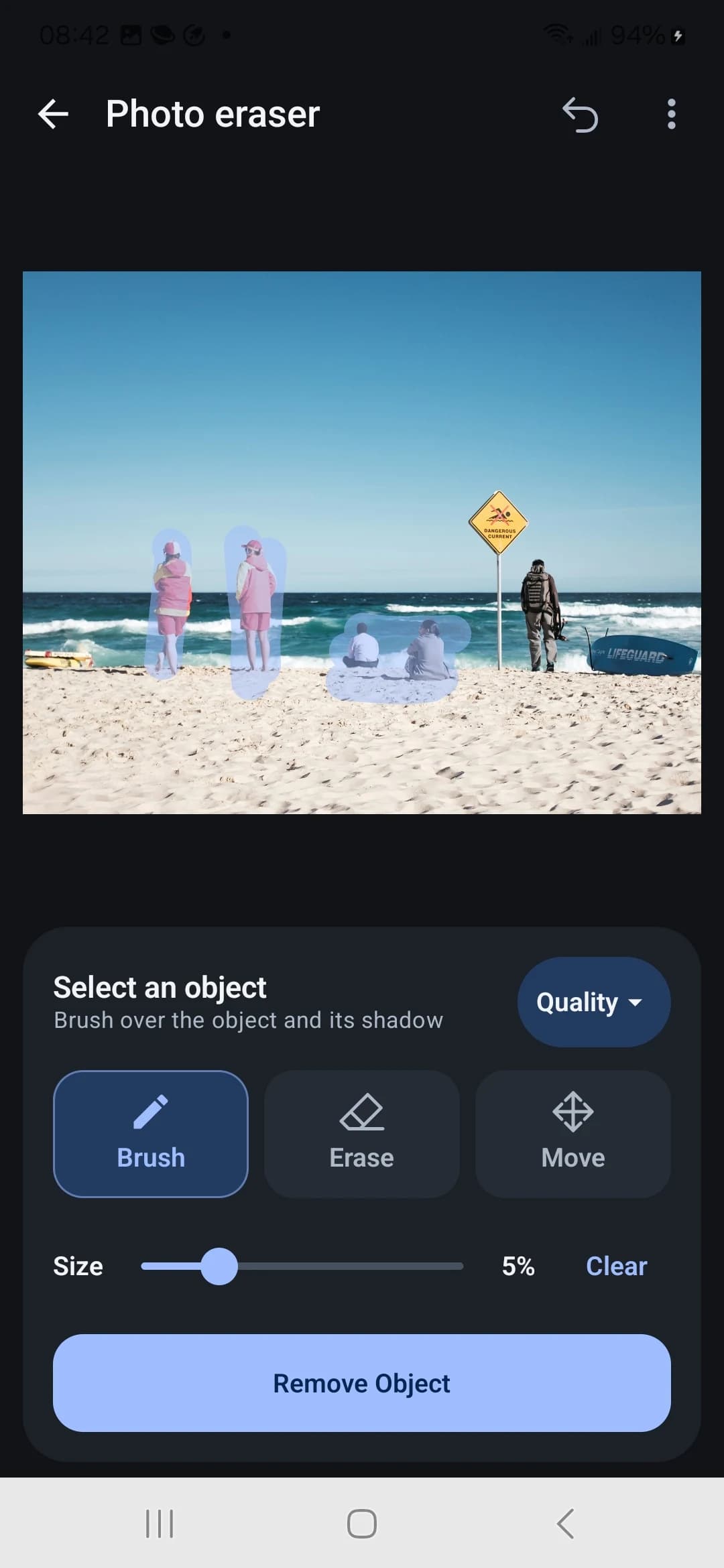
Android phone editor with an orange van selected for removalAndroid phone editor with lettering on a wall selectedAndroid phone editor showing a green selection over people on a beach

Make room for what matters.

Explore photo cleanup for Android through three everyday examples: removing people from a beach, clearing a parked car and erasing lettering from a wall. Drag across each image to compare the original photo with the cleanup example.

Remove unwanted people. Keep the beach.

Remove unwanted people from beach photos, travel pictures and everyday snapshots on your Android phone. Brush over passersby or background visitors while leaving your main subject unselected. The AI object remover fills the marked area using the surrounding scene, helping you keep the shoreline and the framing you chose. Review the sand, water and nearby edges, then refine any remaining distractions before saving your photo.
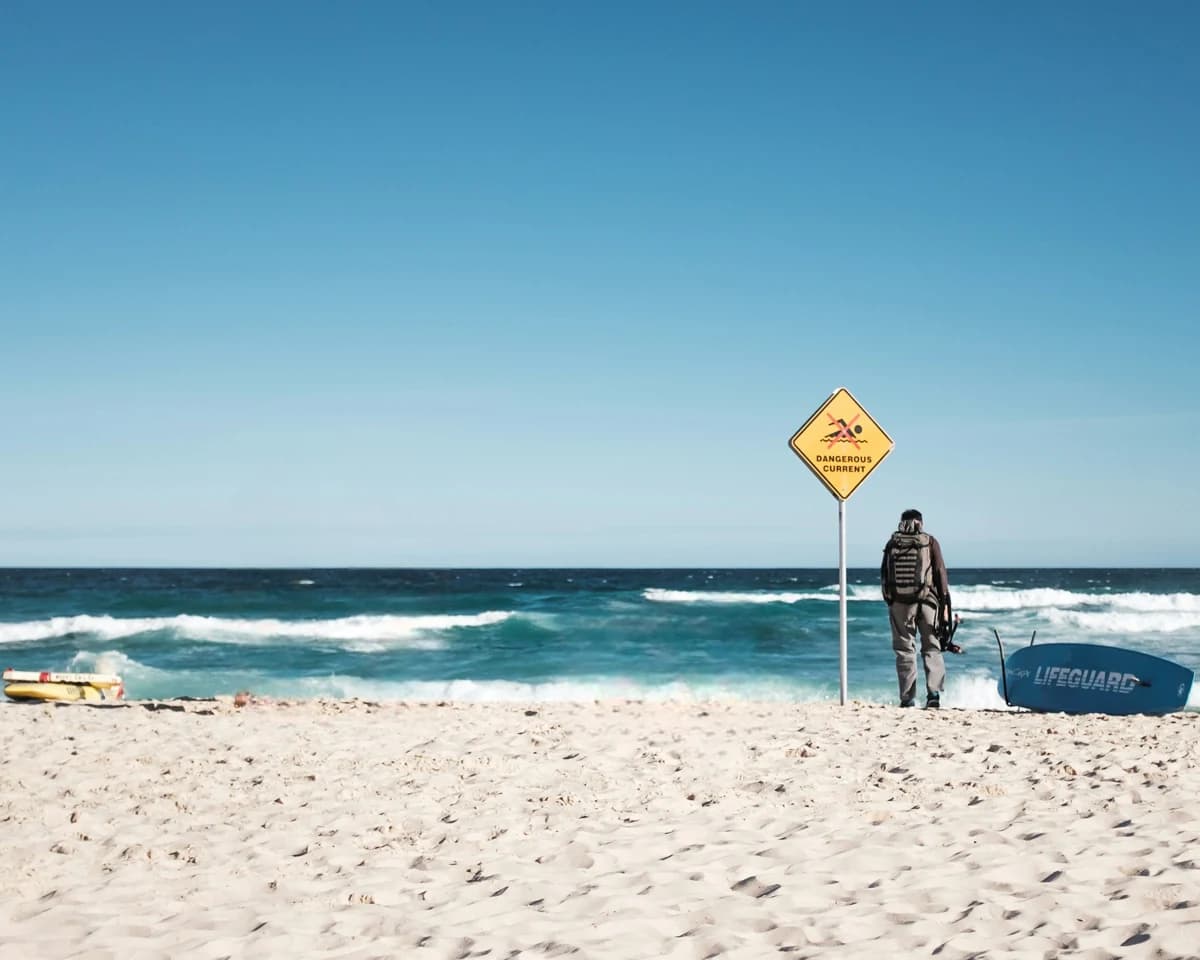
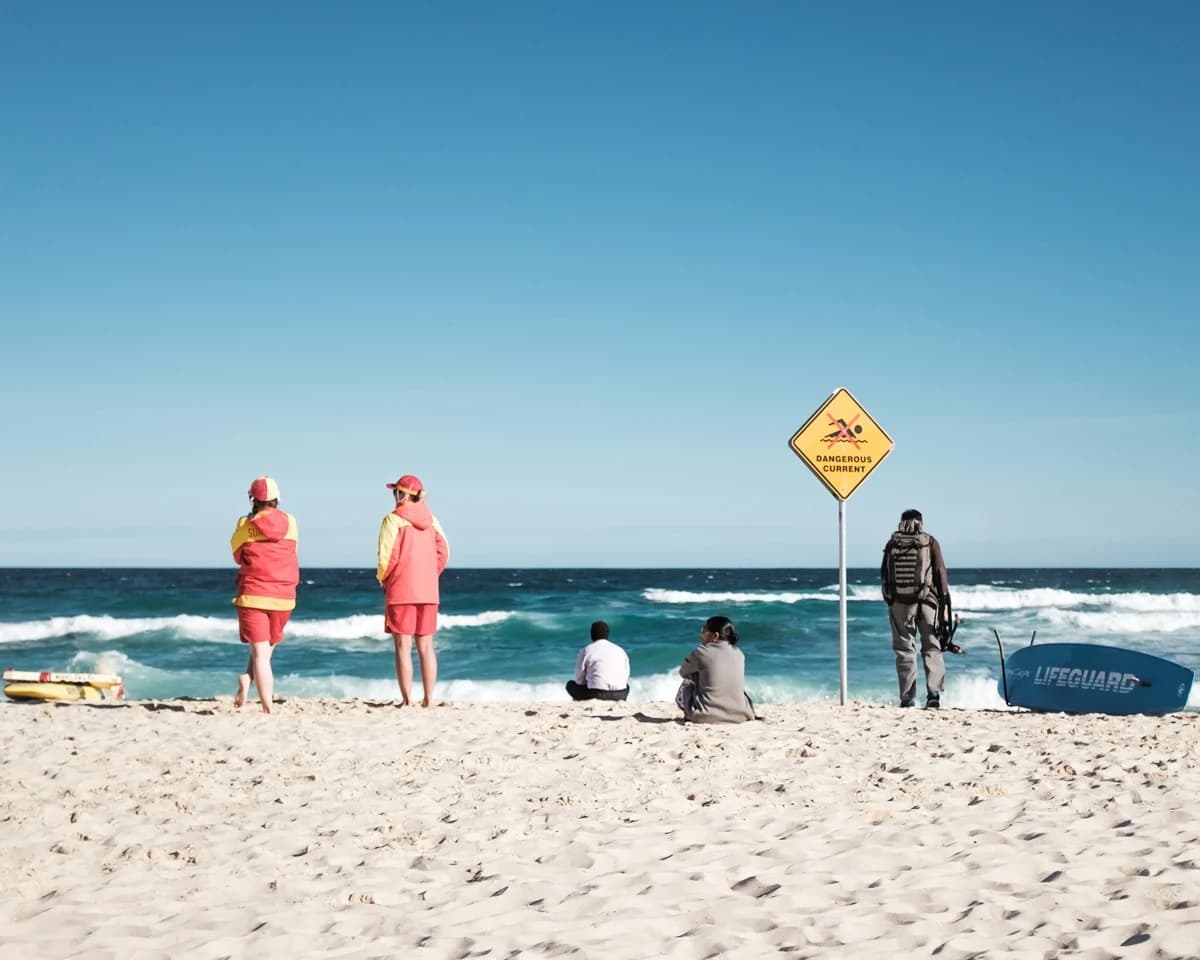
Beach scene with selected visitors removed — AfterBeach scene with selected visitors removed — Before

Remove the parked car. Open up the street scene.

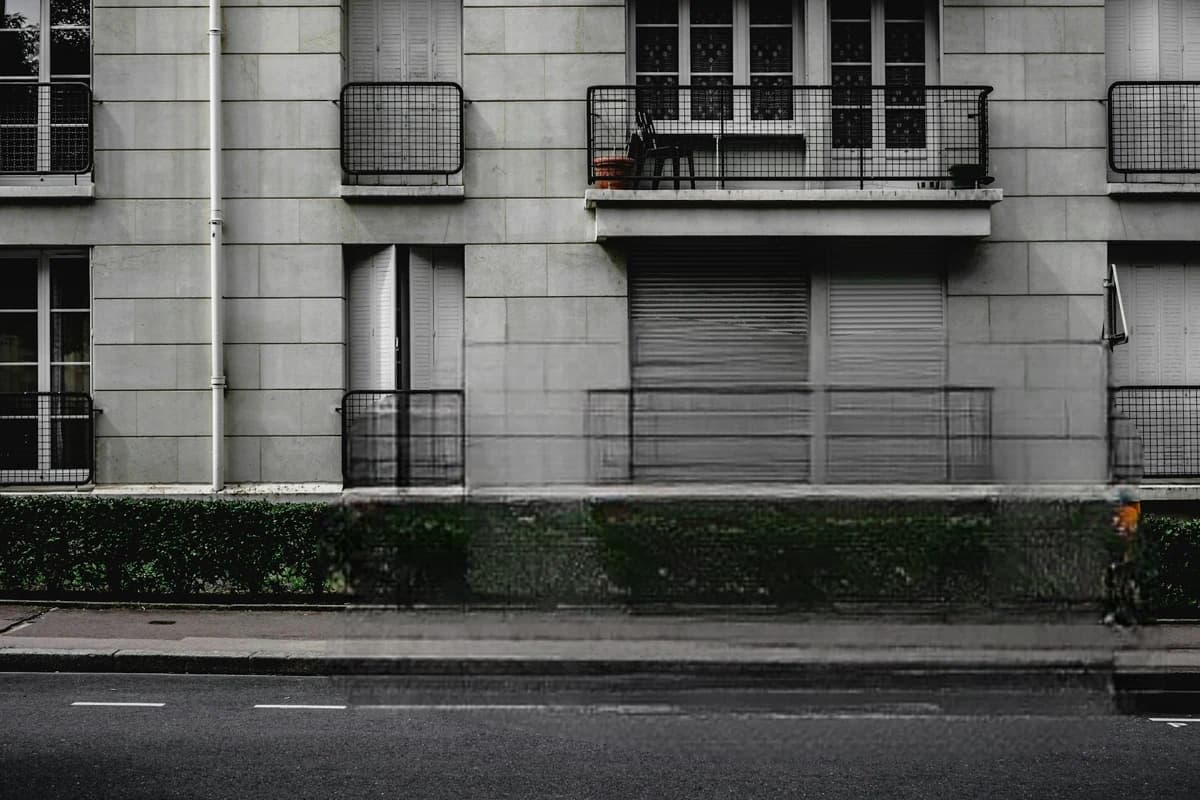
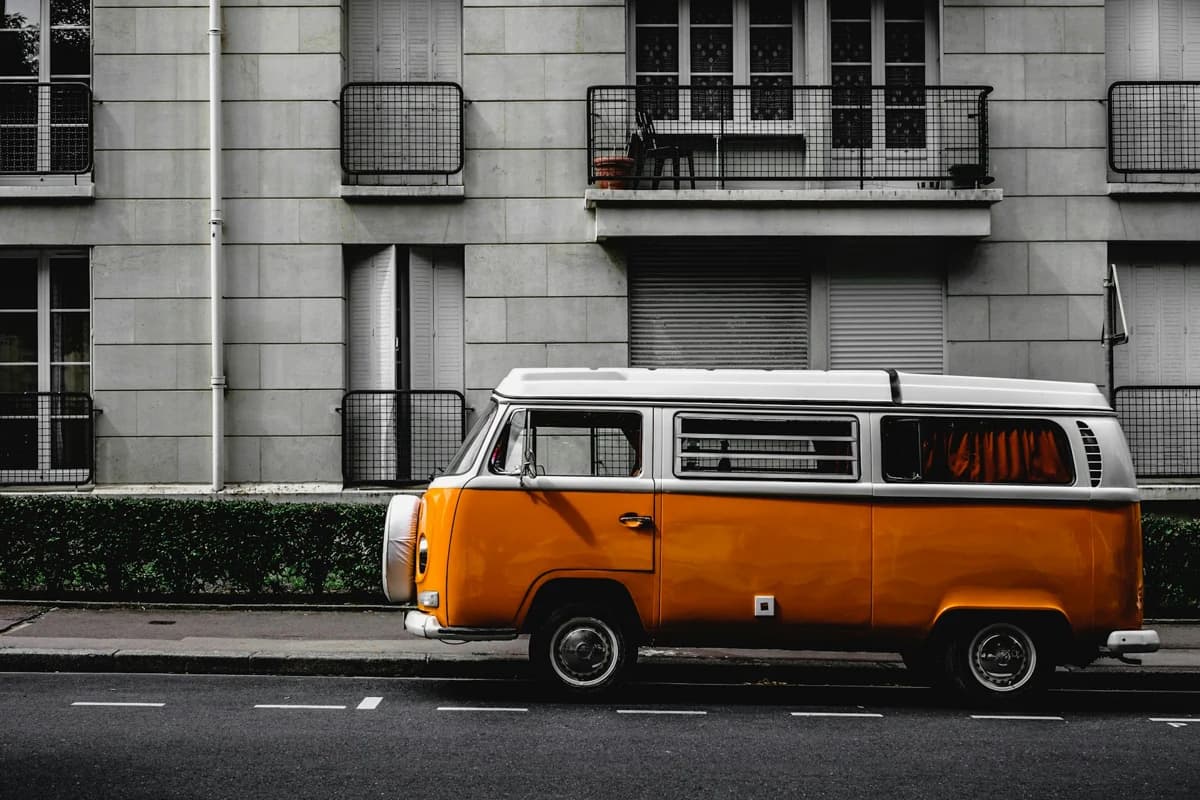
A parked car can draw attention away from the architecture or view you wanted to photograph. Use the Android phone photo eraser to remove cars and other unwanted objects without cropping the image. Paint over the vehicle, including its edges, and let Object Remover fill the selection from the surrounding scene. Check pavement patterns and building lines after processing, and make a smaller follow-up selection where details need extra cleanup.

Street scene before and after removal of an orange van — AfterStreet scene before and after removal of an orange van — Before

Remove text from photos. Keep the texture.

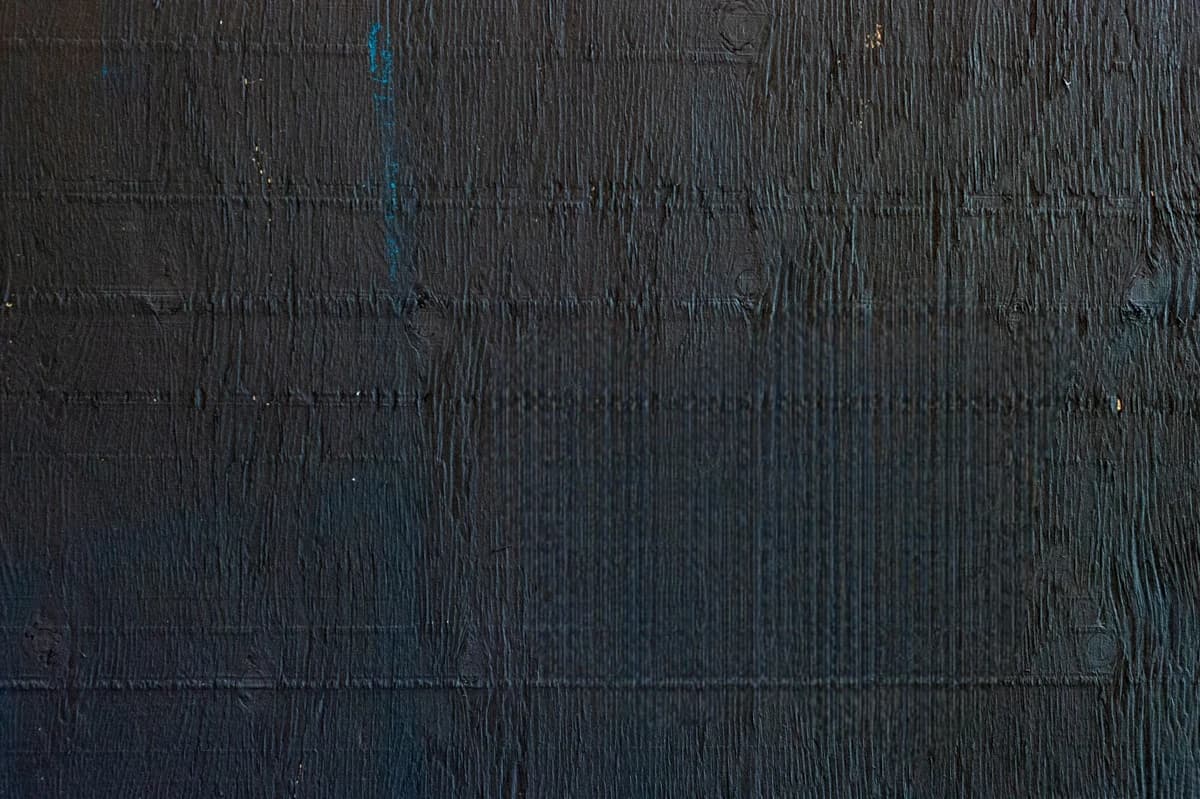
Erase unwanted text, lettering and writing that distract from your photo. In this example, Object Remover clears the words from a dark wall so the surface becomes the focus again. Brush over the letters on your Android phone, process the selection and compare the result with the original image. For textured backgrounds, work in smaller areas and refine any traces around the letter edges before saving the edited photo.

Dark textured wall before and after removing DREAM BIG lettering — AfterDark textured wall before and after removing DREAM BIG lettering — Before

Choose a photo. Give the subject more space.

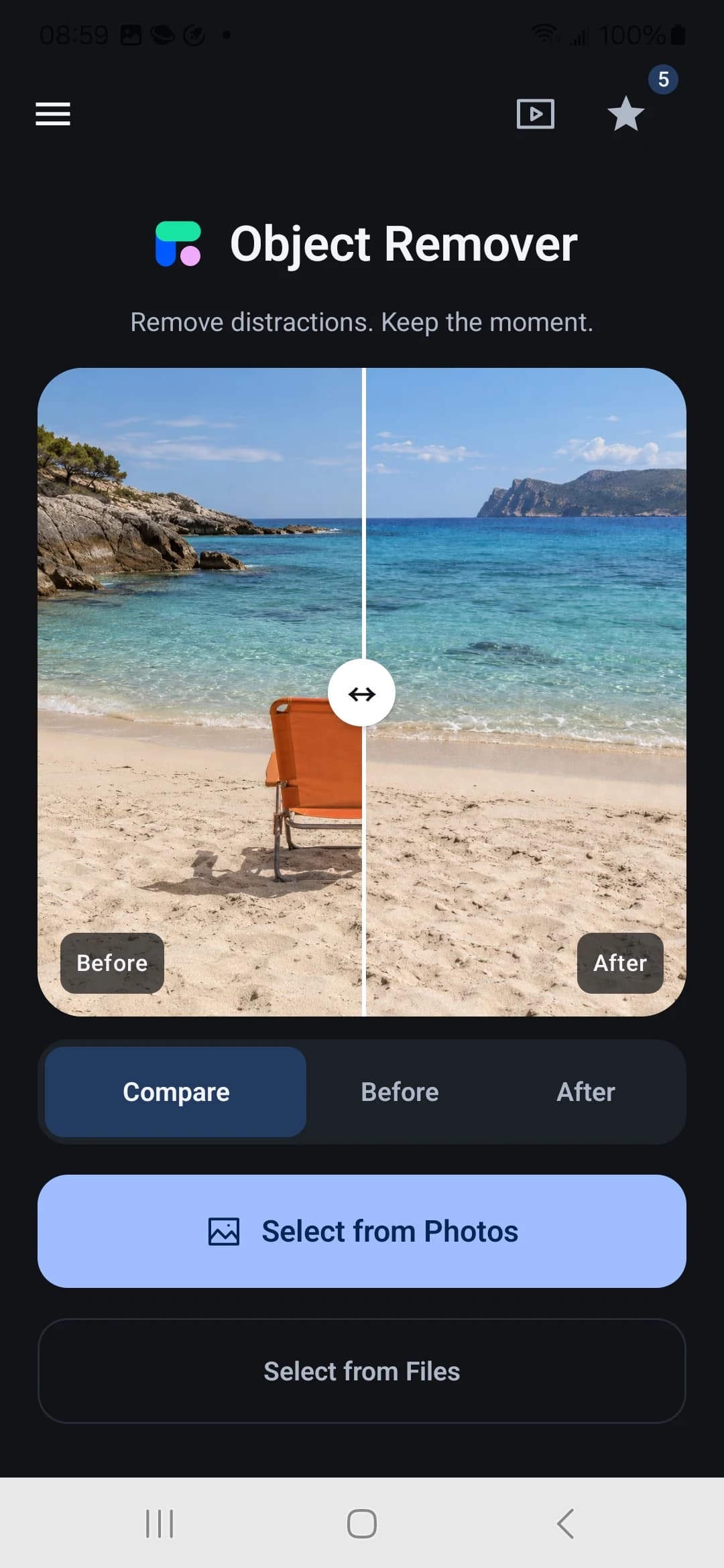
Clean up photos on your Android phone with a straightforward selection workflow. Open an image, mark the unwanted area and take a closer look at the result before saving.

Object Remover for Android home screen with image import controls
  1. 1

    Open your image

    Choose a photo from your photos or files. Start with a travel shot, portrait or another image you want to clean up.

  2. 2

    Select the distraction

    Use touch controls to cover the unwanted object. Adjust the brush size around edges and avoid selecting details you want to keep.

  3. 3

    Review and save

    Run object removal, inspect the surrounding texture and refine any remaining marks. Save the result once you are happy with the edit.

On your Android phone, or in your browser.

Choose the Object Remover app for a dedicated photo editing workspace on your Android phone, or open the online object remover for a quick edit in your browser. Compare how you open photos, select distractions and get started.

On your Android phone, or in your browser.
WorkflowAndroid appWeb editor
Getting startedGoogle Play link coming soonOpen the website
Editing workspaceTouch controls on your phoneEdit in a browser tab
Selecting an objectBrush over the unwanted areaBrush selection or a text prompt
Opening a photoChoose from photos or filesUpload an image online

Object Remover for Android: your questions

A few practical details about photo cleanup on your Android phone.

How do I remove an object from a photo on Android?

Open your image in Object Remover for Android, use the brush to cover the unwanted object and process the selection. Review the filled area and refine any remaining edges before saving.

What kinds of photos can I clean up?

Try travel photos, street scenes, portraits and everyday snapshots with distracting objects in the background. Simple surroundings are usually easier to fill than detailed patterns or overlapping subjects.

Will the result match the examples exactly?

The comparisons on this page use sample photos to illustrate cleanup tasks. Your result depends on the image, selection and surrounding detail. Review the result and make smaller follow-up selections where needed.

Where can I download the Android app?

The Google Play download link will be added here when it is available. In the meantime, you can use the online object remover in your browser.

Can I use Object Remover in a browser instead?

Yes. Open the web editor to upload a photo and select unwanted objects with a brush or a text prompt. The web editor processes photos online and does not require an app installation.

A cleaner photo, wherever you edit.

Explore Object Remover for Android, or start removing unwanted objects with the web editor today.

Try the web editor