

Get the Object Remover app

Download Object Remover for iOS

Your photos. A clearer view on Mac.

Remove unwanted objects from photos on your Mac with a dedicated AI photo eraser. Open a travel photo, clear background clutter or refine a pet portrait, with room to inspect your selection and the surrounding detail in a desktop workspace.

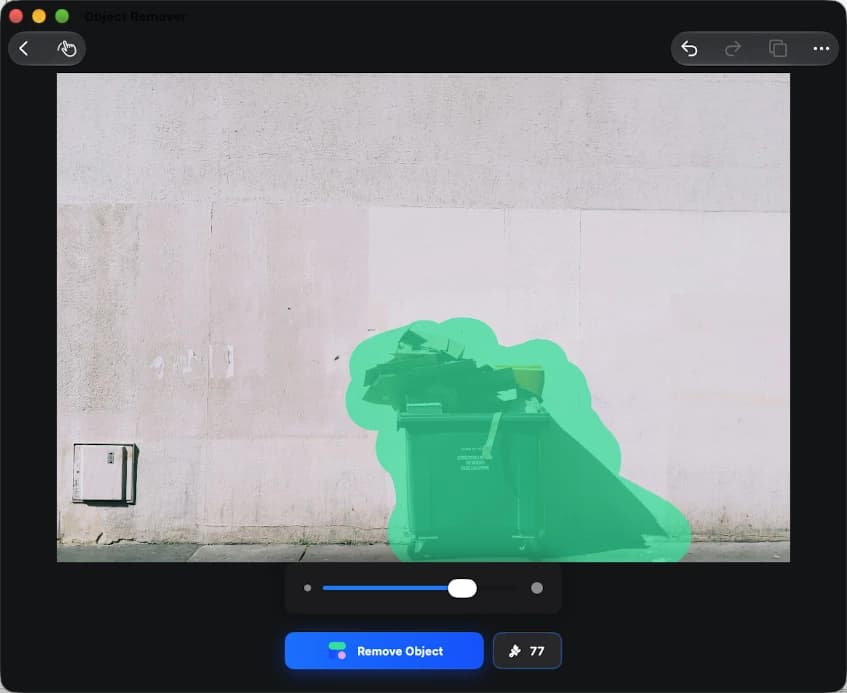
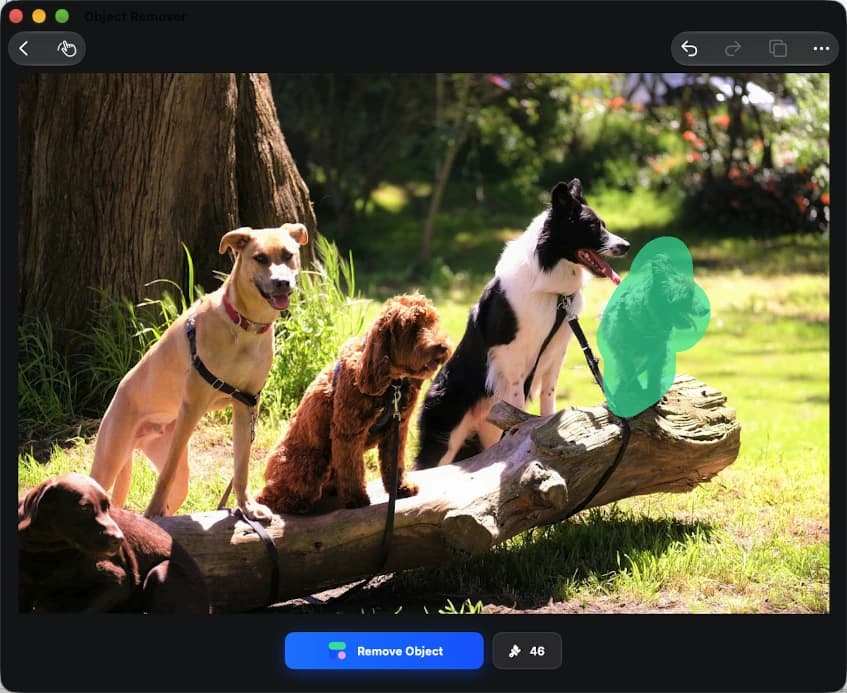
Object Remover on Mac with a trash bin selected against a wallObject Remover on Mac with the rightmost dog selected in a group photoObject Remover on Mac with background beach visitors selected

Make room for what matters.

Explore object removal on Mac through beach photos, street details and pet portraits. Drag across each image to compare the original with a cleanup example, and see which distractions you could remove from your own photos.

Keep the family moment. Remove background visitors.

A busy beach can pull attention away from the people you meant to photograph. Use Object Remover for Mac to select unwanted visitors in the distance while leaving your family and the beach umbrella untouched. The AI photo eraser fills the selected area from the surrounding scene. Review the shoreline and water in your desktop workspace, then refine small distractions without cropping away the setting.


Family beach photo before and after removing background visitors — AfterFamily beach photo before and after removing background visitors — Before

Clear the clutter. Keep the character.

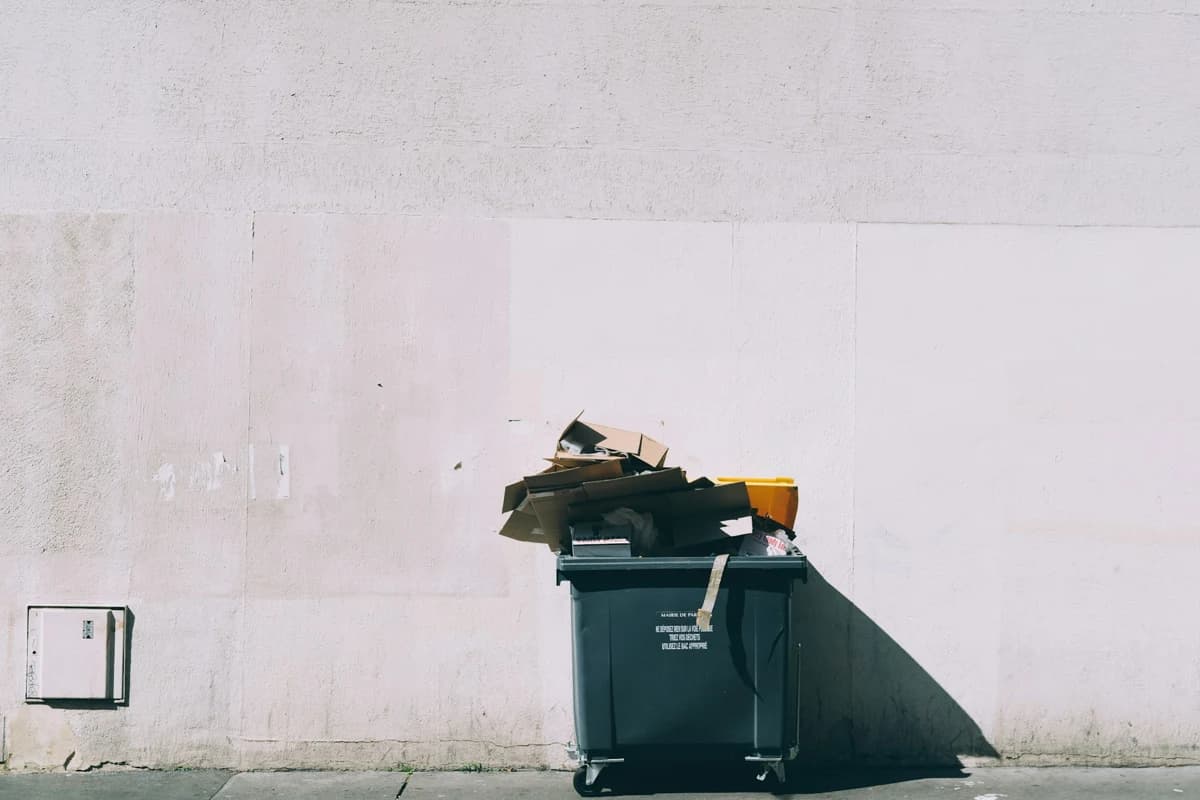
Remove a trash bin or another unwanted object that interrupts an otherwise simple composition. In this example, the selected bin disappears from a pale wall, bringing attention back to the light and surface texture. Brush over the object in the Mac photo editor, check its edges and review any remaining shadow. Smaller follow-up selections can help refine the pavement and wall after the first edit.

Pale wall before and after removing a trash bin — AfterPale wall before and after removing a trash bin — Before

Choose the focus of your pet photo.

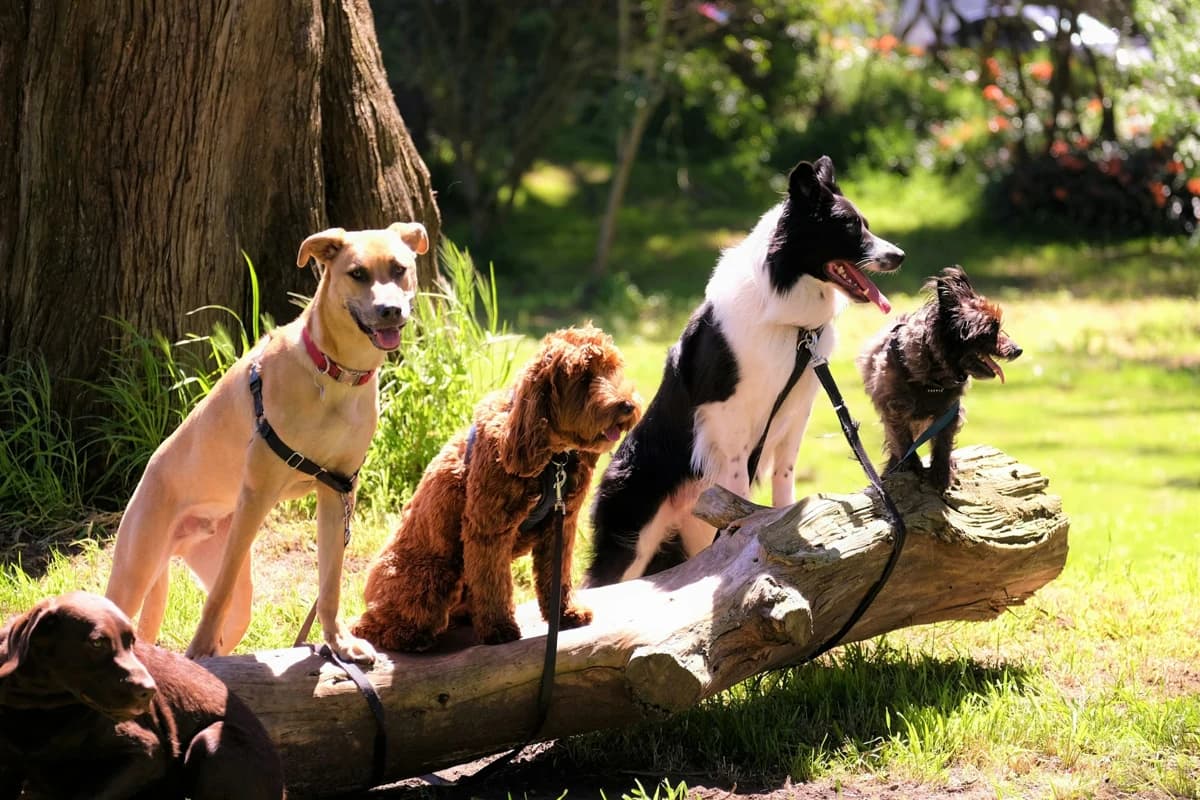
Give your favourite pets more room in a group photo. Select the animal you want to remove while keeping the other dogs and the setting in the frame. Object Remover for Mac helps fill the marked area, so you can adjust the composition without cutting down the image. Take a close look at fur, the log and nearby foliage before saving; overlapping subjects and detailed backgrounds may need another pass.

Dogs on a log before and after removing the dog on the right — AfterDogs on a log before and after removing the dog on the right — Before

Choose a photo. Give the subject more space.

Clean up photos on your Mac with a straightforward selection workflow. Open an image, mark the unwanted area and take a closer look at the result before saving.

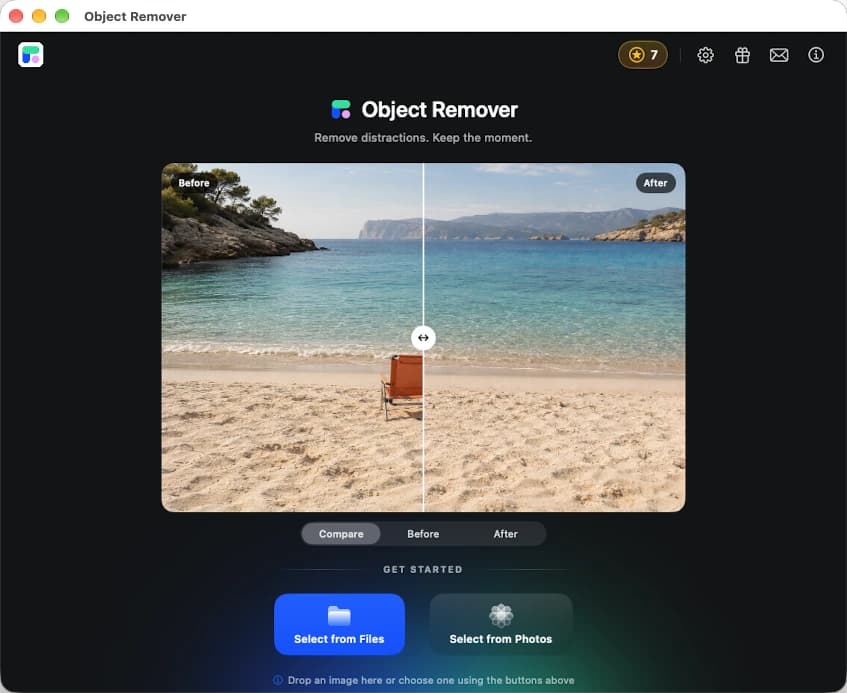
Object Remover for Mac home screen with image import controls
  1. 1

    Open your image

    Choose a photo from your computer. Start with a travel shot, portrait or another image you want to clean up.

  2. 2

    Select the distraction

    Use the brush controls to cover the unwanted object. Adjust the brush size around edges and avoid selecting details you want to keep.

  3. 3

    Review and save

    Run object removal, inspect the surrounding texture and refine any remaining marks. Save the result once you are happy with the edit.

On your Mac, or in your browser.

Choose the Object Remover app for a dedicated photo editing workspace on your Mac, or open the online object remover for a quick edit in your browser. Compare how you open photos, select distractions and get started.

On your Mac, or in your browser.
WorkflowMac appWeb editor
Getting startedInstall from the App StoreOpen the website
Editing workspaceA dedicated desktop editing windowEdit in a browser tab
Selecting an objectBrush over the unwanted areaBrush selection or a text prompt
Opening a photoOpen an image from your computerUpload an image online

Object Remover for Mac: your questions

A few practical details about photo cleanup on your Mac.

How do I remove an object from a photo on Mac?

Open your image in Object Remover for Mac, use the brush to cover the unwanted object and process the selection. Review the filled area and refine any remaining edges before saving.

What kinds of photos can I clean up?

Try travel photos, street scenes, portraits and everyday snapshots with distracting objects in the background. Simple surroundings are usually easier to fill than detailed patterns or overlapping subjects.

Will the result match the examples exactly?

The comparisons on this page use sample photos to illustrate cleanup tasks. Your result depends on the image, selection and surrounding detail. Review the result and make smaller follow-up selections where needed.

Where can I download the Mac app?

Use the download button on this page to open the App Store listing. Check the listing for device compatibility, current pricing and available purchase options.

Can I use Object Remover in a browser instead?

Yes. Open the web editor to upload a photo and select unwanted objects with a brush or a text prompt. The web editor processes photos online and does not require an app installation.

Give your next photo a cleaner view on Mac.

Open Object Remover on your Mac, select the distraction and bring attention back to your subject.